
What is Cursor?
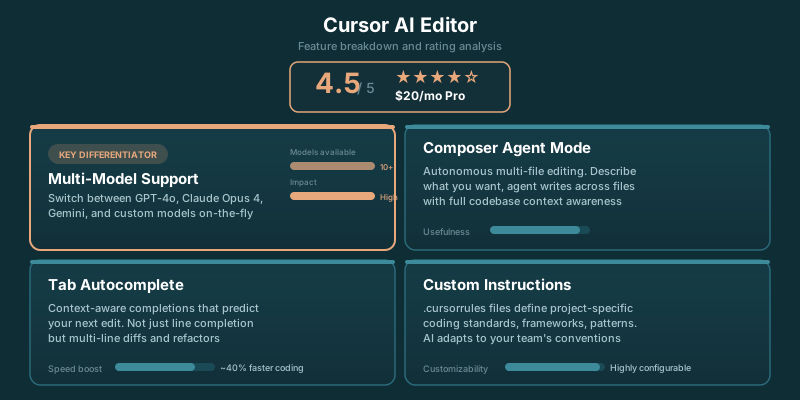
Cursor IDE is a full development environment built from a fork of VS Code, with AI woven into the editor instead of bolted on as a plugin. It is worth the switch for most developers who spend enough time changing unfamiliar code, working across files, or explaining a codebase to themselves.
Cursor Pro costs $20 per month with a $20/mo credit pool for premium model requests Related analysis. That price puts it above GitHub Copilot Pro, but Cursor earns the gap when its multi-file editing saves you from the boring part of implementation.
The catch is simple: Cursor can make coding feel much faster, but it can also make it easier to approve a plausible mistake before you understand it. Treat it like a fast junior engineer with access to your repository. Give it a clear task. Read the diff. Keep moving.
TLDR
Cursor is a full IDE built on VS Code, not a plugin. It is worth the switch if you want AI help that can edit across a codebase, answer questions about your project, and keep familiar extensions and shortcuts. The price makes more sense for frequent use.
Is Cursor an IDE?
Yes. Cursor is an IDE.
More specifically, it is a VS Code fork that works as a complete code editor and development environment. You open projects in Cursor, install extensions, use familiar keybindings, run your normal workflow, and write code in the same place where you ask for help changing it.
That distinction matters because "AI coding tool" has become a fairly useless category. A plugin can add suggestions to an editor you already use. Cursor changes the editor itself. Its AI features have access to the working context of the project, and the workflow is designed around moving from a request to a reviewed change without bouncing between a chat window and a file tree all afternoon.
If you already know VS Code, the transition is unusually low-friction. The interface feels familiar because it is familiar. Your muscle memory does not need a funeral.
Cursor's appeal comes from putting several kinds of assistance inside that environment: direct editing, codebase chat, suggested changes, and completion that tries to anticipate the next useful edit instead of merely filling the current line.
That makes Cursor a stronger candidate for developers who want to replace part of their editor workflow, not add another tab to it.
Key Features
Composer (Multi-File Editing)
This is Cursor's killer feature. Composer lets you make changes across multiple files simultaneously using natural language. Describe what you want ("add error handling to all API routes and update the tests"), and Cursor generates a diff across your entire codebase.
You can describe an outcome, point Cursor toward the relevant area of the codebase, and ask it to make the edits. Rather than handing you a code snippet and wishing you luck, it can propose changes across the files involved. That is a different experience from copying output from a chat interface into individual components, routes, tests, and configuration files.
The value is highest when the task is tedious but legible. Rename a concept across a feature. Add an option to an existing flow. Trace a component through its dependencies. Update related tests after changing behavior. These are the jobs that eat time without requiring much original thought. Composer does not remove the need to think. It removes a pile of keyboard work.
The multi-file workflow also makes reviews more concrete. Instead of asking whether an answer sounds right in theory, you inspect a diff in the project where the change will live. You can reject part of it, adjust the request, or take the useful pieces and write the rest yourself.
Chat with Your Codebase
Cursor indexes your entire project and lets you ask questions about it. Unlike a generic chat assistant, it has full context about your specific code, dependencies, and patterns.
That sounds like a small convenience until you have inherited a repository with unclear naming, scattered business logic, and a folder structure created by people who are no longer around to explain it.
Ask where a behavior is defined. Ask which files are tied to a feature. Ask how a value gets from an API response to a UI state. Cursor can help turn the first hour of orientation into something more productive than opening tabs until the answer appears by accident.
This is especially useful when you know what you are trying to change but do not yet know where the code lives. Search still matters. Reading still matters. Cursor just gives you a faster way into the map.
Model Selection
Cursor lets you choose among multiple AI models depending on the task, so you can favor stronger reasoning for complex changes or faster responses for routine completions.
Tab Completion
Tab completion is the quieter feature, and it may be the one you notice most after using Cursor for a while. It predicts likely next edits, including movement beyond the current line. Good suggestions feel less like autocomplete and more like the editor recognizing the shape of the work in front of you.
When it is right, you keep your hands on the keyboard and let the suggestion carry a repetitive edit forward. When it is wrong, you dismiss it and move on. That is the right relationship with completion tools. Useful, disposable, never sacred.
✓ Pros
- Multi-file editing is game-changing
- Full codebase awareness
- Choice of multiple AI models
- VS Code extensions work
- Better context handling than competitors
- Active development, frequent updates
✗ Cons
- $20/month for full features
- Can be slower than native VS Code
- Occasional bugs in Composer
- Learning curve for advanced features
- Some VS Code extensions have issues
Where Cursor Can Waste Your Time
Cursor's output often looks more confident than it deserves.
That is not a Cursor-specific problem. It is the central problem with AI-assisted coding. The editor can produce a coherent change that compiles, fits local style, and still misunderstands an edge case, business rule, or architectural constraint that was never visible in the prompt.
The danger increases with vague requests. "Clean this up" invites the tool to make design decisions you may not agree with. "Move validation into this existing helper, preserve the current error behavior, and update the related test" gives it a job with edges.
You still need to know whether the answer makes sense. Cursor is strongest when you can evaluate the work quickly. It is weaker when you are using it to avoid understanding the system entirely.
Large changes deserve the same skepticism they would receive from a human pull request. Check the affected files. Read the diff. Run the test suite. Look for assumptions that became code because nobody told the assistant otherwise.
Developers who already have solid judgment get the most out of Cursor. Developers looking for a substitute for judgment will get a more polished version of the same trouble.
There is also a practical cost question. If you only occasionally ask for a completion or a quick explanation, a lower-priced alternative may cover the need. Cursor pays off when the editor-level workflow becomes part of how you work every day.
Cursor Pricing: What Each Plan Includes
Cursor's pricing is easiest to understand as a choice about how often you want to use premium requests inside your daily editor.
Cursor Pro costs $20 per month with a $20/mo credit pool for premium model requests Related analysis. For an individual developer, that is the plan most likely to frame the buying decision: does the multi-file editing and codebase context save enough time to justify the monthly cost?
Cursor's top individual tier, Ultra, runs $200/mo Related analysis. That tier is for people whose usage is heavy enough that the standard individual plan becomes a constraint, not a casual upgrade.
The important thing is not to compare pricing as if every request is identical. A cheap completion feature and an editor workflow that can trace a feature, propose connected edits, and help review the result are not the same product experience.
Before upgrading, use your own work as the benchmark. If Cursor helps you ship the kinds of changes that usually turn into context-switching chores, the subscription has a clear job. If it mostly sits open while you write straightforward code, the cheaper route may be enough.
For a fuller breakdown of how the plans work, see our Cursor pricing breakdown.
Who Should Use Cursor?
Ideal For:
- AI/ML Engineers: Building LangChain apps, prompt engineering, working with embeddings
- Full-Stack Developers: Multi-file refactoring across frontend and backend
- Solo Developers: Where Cursor acts as your AI pair programmer
- Teams standardizing on AI tools: Everyone gets the same AI capabilities
Maybe Not For:
- Large enterprise teams: GitHub Copilot may be easier to get approved
- Developers who prefer JetBrains IDEs: Cursor is VS Code-based only
- Those on strict budgets: Free tier is limited compared to Copilot
Cursor is a good fit for developers who already use VS Code and want AI help embedded in the work of editing a real codebase. It is particularly useful when your work involves moving through unfamiliar projects, changing related files, updating existing features, or turning a clear request into a set of reviewable edits. The bigger and messier the repository, the more valuable that context becomes.
It also suits developers who want to stay in control. Cursor gives you a fast draft, an explanation, or a proposed diff. You still decide what enters the codebase.
Copilot may be the better choice if you want lightweight completion at a lower monthly price. Windsurf belongs in the evaluation if you are comparing AI-native editors directly. Cursor is the strongest default when you want the editor itself to help carry the work. The switch is worth making when AI becomes part of the loop where you already spend your time: reading code, changing code, and checking whether the change holds up.
Our Verdict
Cursor is the best AI code editor available today, especially for prompt engineers and AI developers. The Composer feature alone is worth the subscription if you're doing any kind of AI application development. The multi-file editing capability saves hours of manual refactoring.
If you're currently using VS Code + Copilot, try Cursor's free tier for a week. Most developers who do don't go back.
Cursor vs Copilot vs Windsurf
Cursor, GitHub Copilot, and Windsurf overlap, but the plan structures tell you what each product is optimizing for.
| Editor | Price | Plan structure |
|---|---|---|
| Cursor | $20 per month for Pro | Includes a $20/mo credit pool for premium model requests |
| GitHub Copilot | $10/mo for Pro | Includes 300/mo premium requests |
| Windsurf | $15/mo for Pro | Pro plan |
GitHub Copilot's free plan includes 2,000 completions per month Related analysis. That makes it an easy place to start if your main interest is completion and you do not yet know whether AI belongs in your editor every day.
GitHub Copilot Pro costs $10/mo with 300/mo premium requests Related analysis. Copilot wins on entry price for developers who want a familiar assistant inside an existing workflow and do not need Cursor's editor-first approach.
Windsurf Pro costs $15/mo Related analysis. Windsurf is the middle-priced option in this comparison, which makes it worth evaluating if you are already testing AI-native editors and want to compare how each one handles the actual work in your repository.
Cursor wins when you want the IDE itself organized around AI-assisted changes. Copilot wins when price and a lighter layer of assistance matter more. Windsurf is the alternative to put beside Cursor when you are deciding between AI-native editor workflows rather than choosing whether to use AI at all.
The mistake is treating the price table as the decision. Open the same project in each editor. Give each one a task that crosses files. See which result you would trust enough to review, revise, and merge.
We have deeper head-to-head breakdowns of Cursor vs Copilot and Cursor vs Windsurf if you are narrowing the field.
How Cursor Ranked in Our Editor Tests
Cursor ranked best overall in our five-editor test at 4.5 stars Related analysis.
That result reflects the thing Cursor gets right: it feels like a capable editor first, then gives you faster ways to work through code that would otherwise require a lot of manual navigation and repetition.
The familiar VS Code foundation helps. You are not learning an alien environment just to gain access to AI features. Extensions, settings, and keybindings make the switch feel less like changing careers and more like moving desks.
Cursor also avoids a common trap in AI coding products. It does not force you into a separate conversation for every task. You can work in the files, use the assistant when the task benefits from context, inspect the proposed change, and return to ordinary coding.
That rhythm matters more than a feature checklist. Most development work is not a series of dramatic prompts. It is reading, editing, checking, changing your mind, and finding the one place a previous assumption broke down. Cursor fits that loop well.
Our best AI code editors review is the place to look if you want the broader testing context or if Cursor is only one name on your shortlist.
Key Takeaways
- Cursor is a full VS Code-based IDE, not a plugin.
- Its strongest feature is multi-file editing through Composer.
- Cursor Pro costs $20 per month with a $20/mo credit pool for premium model requests.
- GitHub Copilot is cheaper, while Cursor offers a more editor-centered workflow.
- Cursor ranked best overall in our editor testing at 4.5 stars.
Sources
- PE Collective Cursor pricing breakdown: $20 per month
- PE Collective GitHub Copilot pricing: $10/mo
- PE Collective AI code editor tests: 4.5 stars